A tour of the interface
The icon bar, sidebar, chat area and message box - what everything does.
Everything in AI Assistify lives on one screen: a narrow icon bar on the far left, a sidebar that changes with the icon you pick, and the chat itself. This tour shows what each part does so you always know where to look.
The icon bar
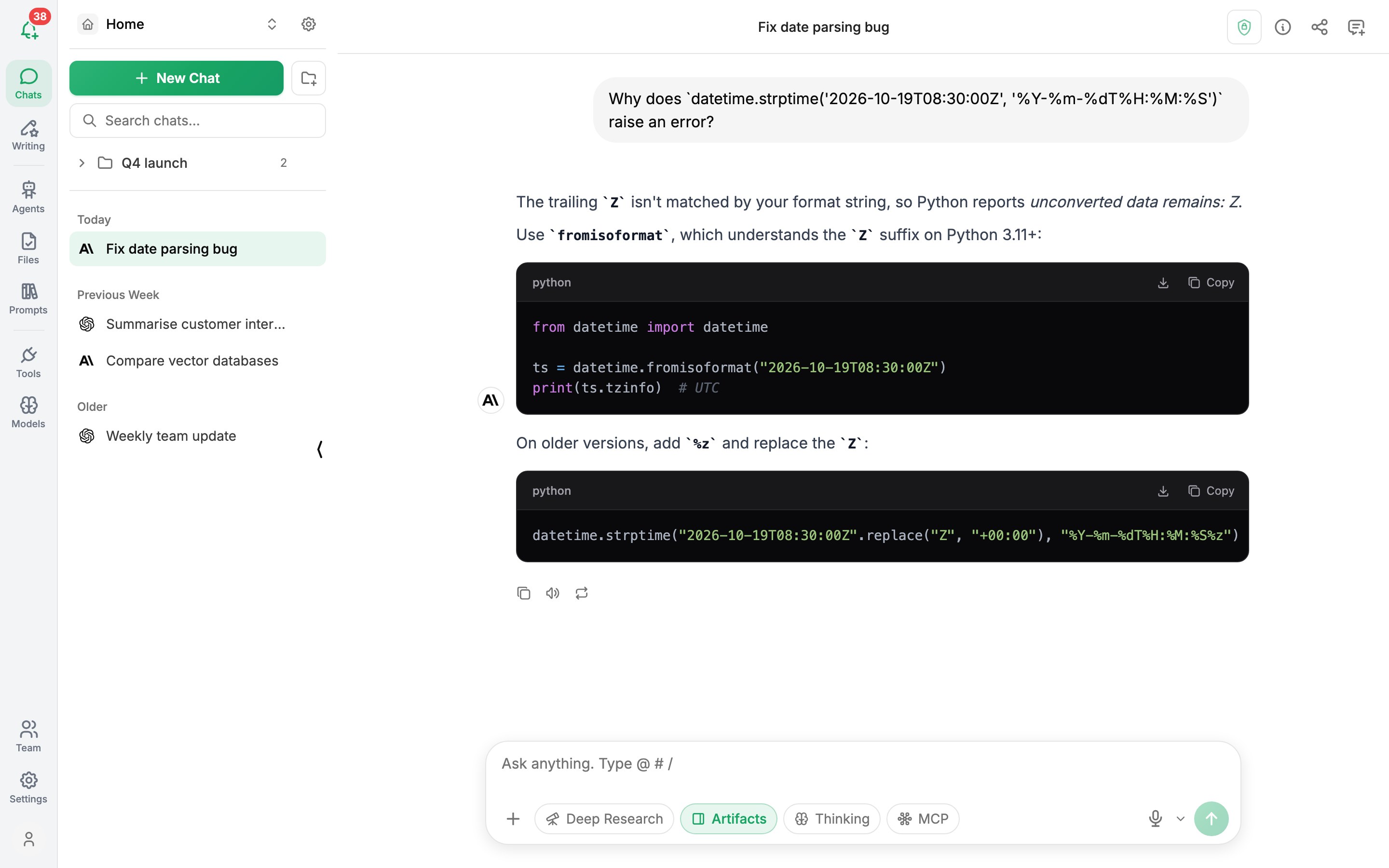
The column of icons on the far left switches what the sidebar shows. At the very top, the bell shows product updates (the badge counts unread ones); at the very bottom, your profile picture opens your profile.
| Icon | Opens |
|---|---|
| Chats | Your conversations, grouped by date, plus folders |
| Writing | The free AI writing tools library (opens in a new page) |
| Assistants | Reusable assistants with their own instructions, files and tools |
| Files | Documents you've uploaded for the AI to read |
| Prompts | Your saved prompt templates |
| Tools | Installed tools and MCP connectors, plus the stores to add more |
| Models | Built-in models and any custom models you've added |
| Settings | General preferences, API keys, app data, cloud sync and shortcuts |
At the top of the sidebar you'll always find the workspace switcher and its settings gear - see Workspaces. Press CtrlS to hide or show the sidebar, or use the small arrow on its edge.
The chat area
When no conversation is open you see the home screen with your Pinned AI Agents - assistants you've pinned for one-click access. Click View All to browse every assistant.
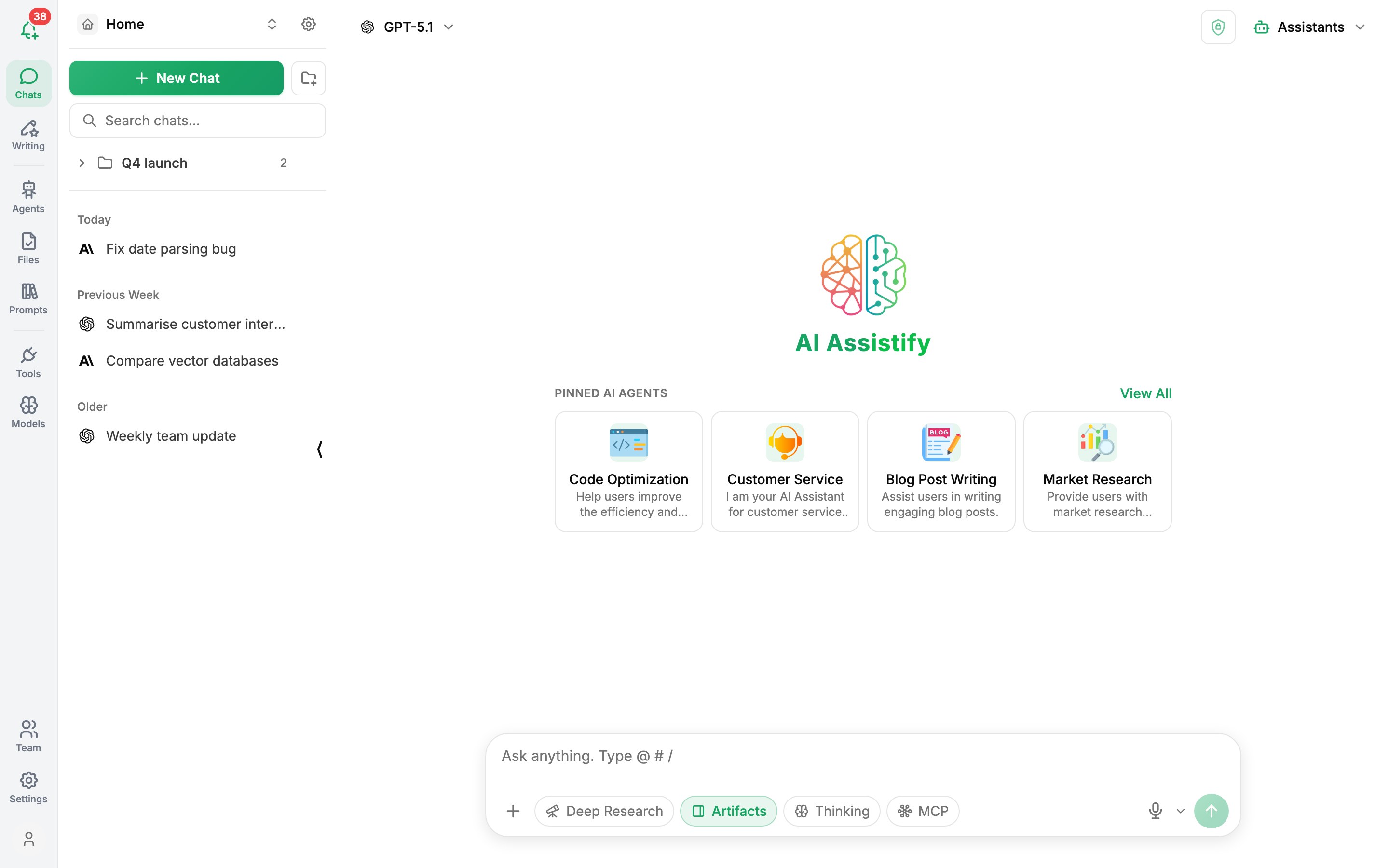
At the top of the chat:
- Model selector (left) - shows the current model; click it to switch.
- Assistants - pick an assistant to chat with. Shortcut: CtrlP.
- Chat info, Share chat and New Chat buttons appear once a conversation has started.
The message box
The message box at the bottom is where you type. The row of buttons underneath it gives you everything else:

| Button | What it does |
|---|---|
| Paperclip | Attach a file or image |
| Assistants, Files, Prompts, Tools | Open the matching picker |
| MCP Connectors | Turn connectors on or off for this chat |
| Artifacts | Open long code and documents in a side panel |
| Deep Research | Research a question across many sources |
| Thinking Mode | Show the model's reasoning (supported models only) |
| Microphone | Dictate your message - the language picker next to it sets the spoken language |
You can also type a trigger character straight into the box: @ for assistants, / for prompts, # for files and ! for tools.
Where to go next
- Quick start - add a key and send your first message.
- Keyboard shortcuts - move around without the mouse.
Was this article helpful?