Choose the right model
Switch models per chat and understand vision, tools, thinking and context length.
AI Assistify works with models from many providers. You can pick a different model for every chat - and even switch partway through a conversation.
Pick a model
- Click the model selector at the top left of the chat - it shows the current model, for example GPT-5.1.
- Browse or type in Search models....
- Click a model. Your next message uses it.
Models only appear for providers you've added an API key for. If the list looks short, add more keys.
What the labels mean
Models come with different abilities. Look out for:
- Vision - can read images you paste or attach. Other models reply "Images are not supported for this model."
- Tools - can call tools and MCP connectors. Other models show "Tools are not supported for this model."
- Thinking Supported - can show their reasoning with Thinking mode.
- Context length - how much text (your messages, files and the AI's replies) the model can consider at once.
Compare models
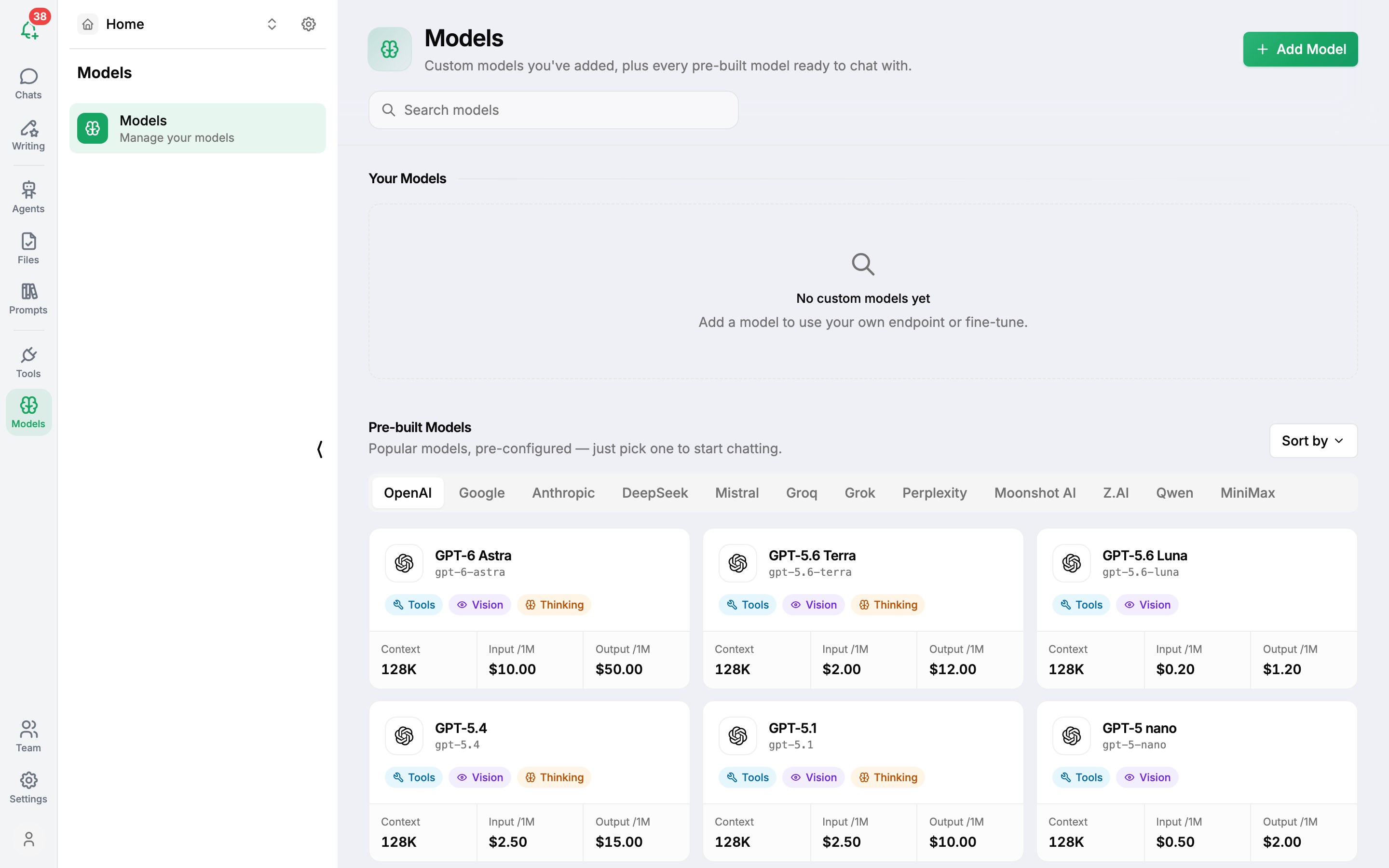
For the full list, open Models in the left icon bar. The Pre-Built Models table shows every model by provider (OpenAI, Google, Anthropic, DeepSeek, Mistral and more) with Vision Supported, Tool Supported, Max Context Length, Pricing /1M tokens (input ↓ and output ↑), and feature badges - Plugins, Vision and Thinking. Use Sort By to reorder it.
Which model should I use?
| If you want | Try |
|---|---|
| Fast everyday answers | A small, fast model from any provider |
| The best writing or coding | The provider's flagship model |
| Long documents | A model with a large context length |
| Step-by-step reasoning | A model marked Thinking Supported |
| Images in your messages | A model with vision |
Use your own model
Have a self-hosted or OpenAI-compatible endpoint? Add it as a custom model.
Was this article helpful?