
Manage chats and folders
Start, search, rename, delete and organise your conversations.
Every conversation is saved as a chat in the Chats sidebar. Here's how to start, find, organise and clean up your chats.
Start a new chat
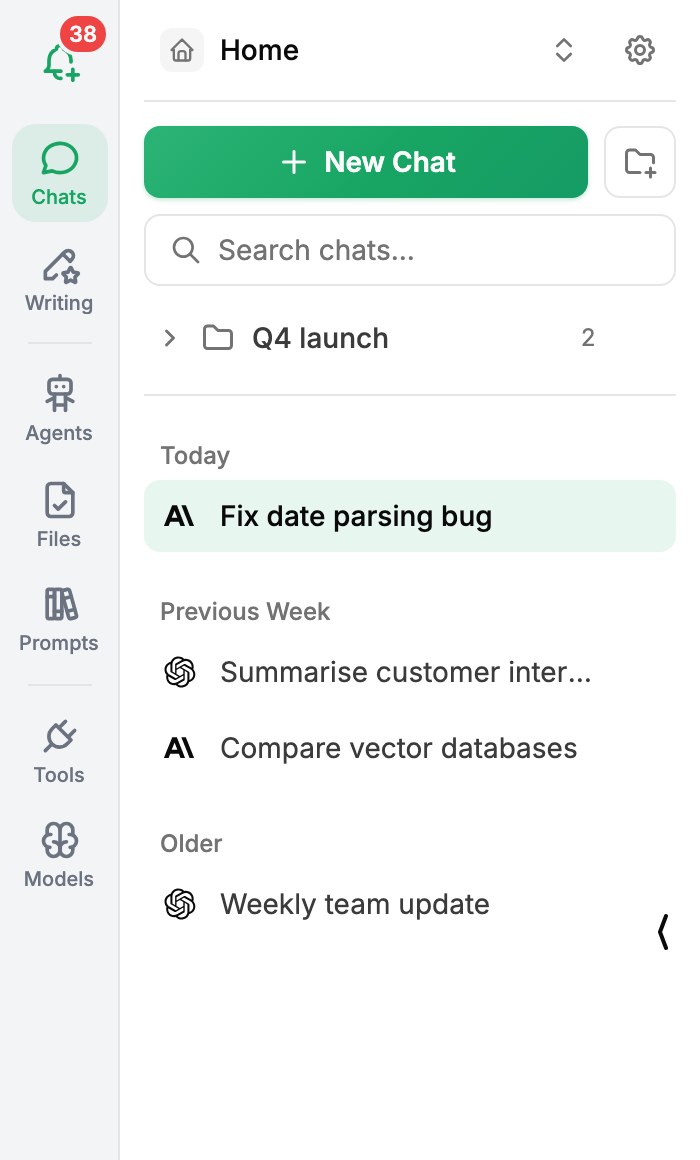
Click + New Chat at the top of the Chats sidebar, or press CtrlO. The new chat uses your workspace's default model and settings - change them any time from the model selector.
Find a chat
Your chats are listed newest first and grouped into Today, Yesterday, Previous Week and Older. To find an older one, type in Search chats... at the top of the sidebar.
Rename or delete a chat
- Hover over the chat in the sidebar - a pencil and a trash icon appear.
- Click the pencil (Edit Chat) to rename it, then Save.
- Or click the trash (Delete Chat) and confirm.
With a chat open you can also press Ctrl⌫ Backspace to delete it.
Organise chats in folders
- Click the new folder icon next to + New Chat.
- Name the folder.
- Drag chats onto the folder to move them in. Drag them back out to remove them.
Click a folder to expand or collapse it. To rename it, hover over it and choose Edit Folder.
Delete a folder
When you delete a folder you get two options:
- Delete Folder Only - the folder disappears; its chats move back to the main list.
- Delete Folder & Included Items - the folder and every chat in it are deleted.
Chat info
Click Chat Info at the top of an open chat to see its title, model, temperature and context length at a glance.
Was this article helpful?