
Create and use assistants
Build reusable assistants with their own instructions, model, files and tools.
An assistant is a reusable AI helper with its own instructions, model, knowledge files and tools. Build one once - a support agent, a code reviewer, a brand-voice copywriter - and call it up whenever you need it.
Create an assistant
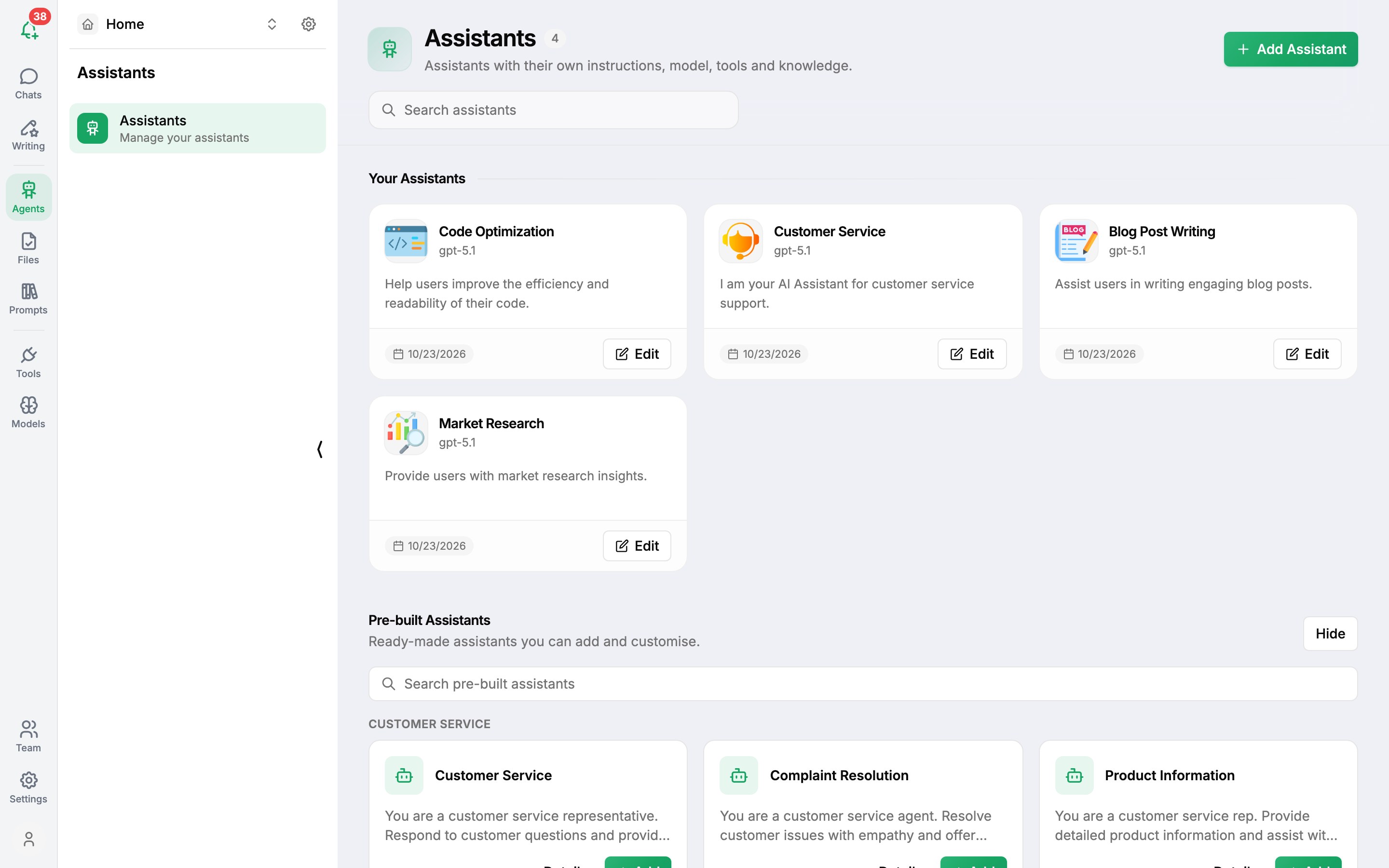
- Open Assistants in the left icon bar and click + Add Assistant.
- In Create Assistant, fill in:
- Name and Description - what it's for, in a sentence.
- Icon (optional) - an image URL for its avatar in chats and on the home screen.
- Files - documents it can search, such as your FAQ or style guide. See Files & documents.
- Model - the model it always uses.
- Prompt - its instructions. Describe its role, tone, what it should and shouldn't do, and the format of its answers.
- Advanced Settings - temperature, context length and more. See Chat settings.
- Turn on Pin Assistant to show it on the home screen.
- Click Create.
Write a good prompt
You are Ava, the support assistant for Acme Cloud.
- Answer only from the attached help articles. If the answer
  isn't there, say so and suggest contacting [email protected].
- Keep answers under 150 words, with numbered steps for how-tos.
- Be warm and plain-spoken. Never promise refunds.
Chat with an assistant
- Type
@in the message box and pick it, or - click Assistants at the top of the chat (CtrlP), or
- click it on the home screen under Pinned AI Agents.
You'll see "You are now chatting with {name}". The assistant's model, prompt, files and tools are used for that chat.
Start from a pre-built assistant
Scroll to Pre-Built Assistants below your own assistants - ready-made helpers such as Code Optimization, Blog Post Writing, Market Research and Customer Service. Add one to use it in your chats, then click Edit to adapt it.
Pin your favourites
Turn on Pin Assistant (when creating it, or later with Edit) to show it on the home screen for one-click access. You can pin up to four; unpin one to make room for another.
Edit or delete
Click Edit on the assistant's card to change anything. Changes apply to new messages straight away, including on websites where the assistant is embedded.
Share an assistant with the world
Workspace admins can put an assistant on a website with the chat widget or on Telegram as a bot.
Was this article helpful?